Keep the good ones close.
Right-click to save a favorite. Recently Used and Frequently Used fill in as you go.
THE EMOJI BROWSER FOR MAC
Find the emoji you had in mind. Search by name or keyword, browse by category, and click once to copy.
🫠 Yes, there’s a melting face in the menu bar.

01 / FIND YOUR WORDS
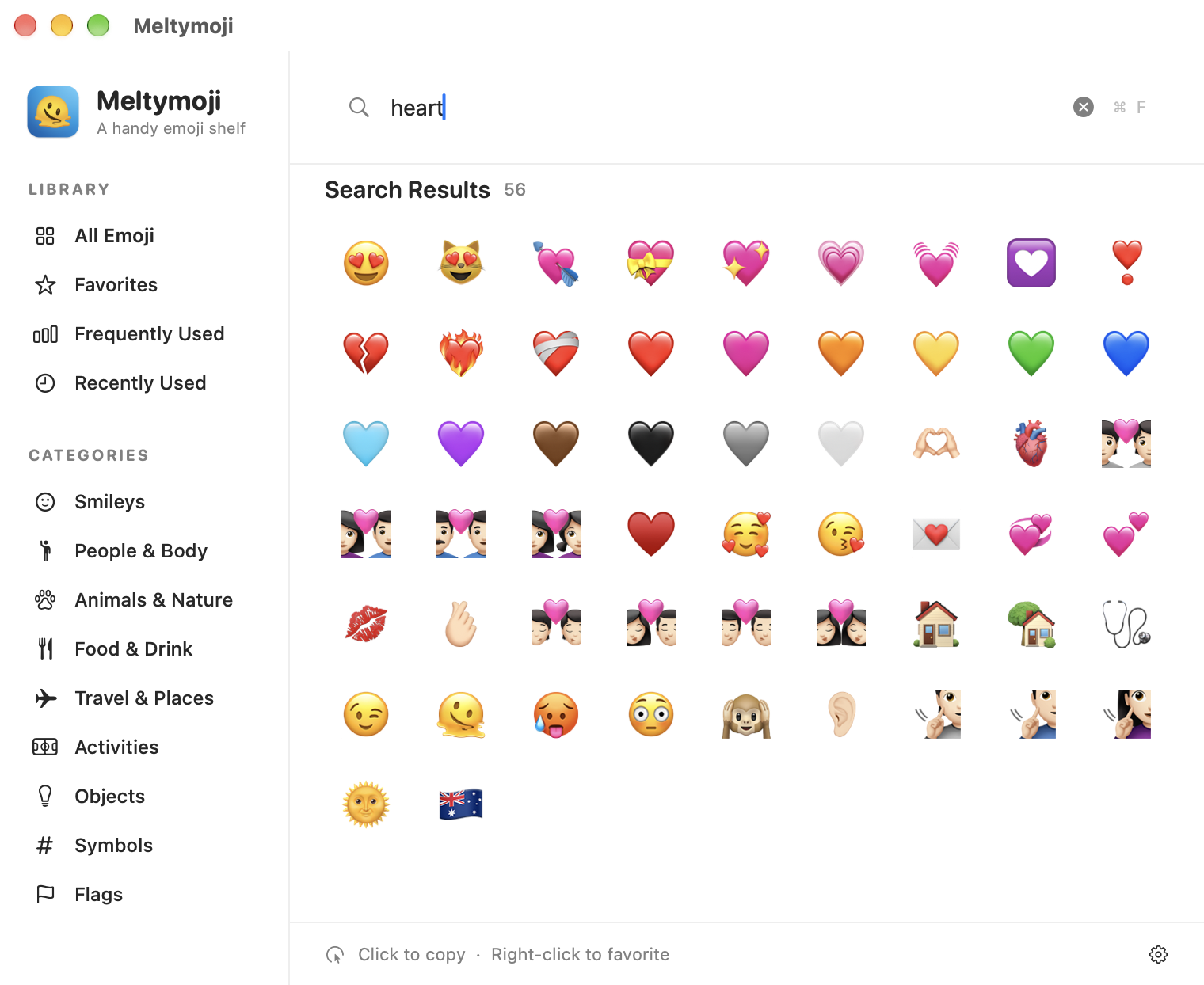
Type a name, a keyword, or the nickname you actually use. Search for “heart,” “pray,” or “rofl” and see what turns up.
Search spans the whole emoji library, not just the category you’re browsing.

02 / YOUR KIND OF DESKTOP
Keep Meltymoji in the Dock or tuck it into the menu bar. Either way, the same emoji library is a click away.
03 / THE NICE LITTLE THINGS
Small touches that make picking an emoji feel easy the next time, too.
Right-click to save a favorite. Recently Used and Frequently Used fill in as you go.
Set a skin tone once, then Meltymoji applies it when you copy supported emoji.
Native controls, a familiar sidebar, keyboard search, and preferences saved on your Mac.
A LITTLE EMOJI, A LOT EASIER TO FIND
Meltymoji is coming to Gumroad. The direct purchase link will go here when the listing is live.
Visit Joey’s Gumroad store MACOS 15 OR LATER · WINDOW + MENU BAR MODES